Показаны сообщения с ярлыком iis7. Показать все сообщения

понедельник, 23 ноября 2009 г.

Configuring IIS for Silverlight Applications

Introduction

Microsoft® SilverlightTM is a cross-browser, cross-platform plug-in for delivering the next generation of .NET based media experiences and rich interactive applications for the Web. Silverlight offers a flexible programming model that supports AJAX, VB, C#, Python, and Ruby, and integrates with existing Web applications. Silverlight supports fast, cost-effective delivery of high-quality video to all major browsers running on the Mac OS or Windows.

In most cases, hosters do not need to perform particular deployments to support Silverlight. However, check for the following basic items that could prevent Silverlight from functioning correctly.

MIME Types

In Windows Server 2008 IIS 7.0

All MIME types needed to support Silverlight are implemented by default in Windows Server 2008 IIS 7.0 and Windows Vista SP1. Windows Vista RTM customers can add mime types by running "IIS Manager", clicking on "Mime Types", then clicking "add" and adding the following mime types:

  • .xap application/x-silverlight-app
  • .xaml application/xaml+xml
  • .xbap application/x-ms-xbap

Alternatively, you can add the following mime types to your %windir%\system32\inetsrv\config\applicationHost.config file in the section.


In Windows Server 2003 IIS 6.0

To enable IIS 6.0 in Windows Server 2003 or IIS7 in Windows Vista RTM with the appropriate MIME Types, add:

  • .xap application/x-silverlight-app
  • .xaml application/xaml+xml
  • .xbap application/x-ms-xbap

Here is a VBS script you could run to enable each of these types:

Const ADS_PROPERTY_UPDATE = 2
'
if WScript.Arguments.Count < 2 then
WScript.Echo "Usage: " + WScript.ScriptName + " extension mimetype"
WScript.Quit
end if
'
'Get the mimemap object.
Set MimeMapObj = GetObject("IIS://LocalHost/MimeMap")
'
'Get the mappings from the MimeMap property.
aMimeMap = MimeMapObj.GetEx("MimeMap")
'
' Add a new mapping.
i = UBound(aMimeMap) + 1
Redim Preserve aMimeMap(i)
Set aMimeMap(i) = CreateObject("MimeMap")
aMimeMap(i).Extension = WScript.Arguments(0)
aMimeMap(i).MimeType = WScript.Arguments(1)
MimeMapObj.PutEx ADS_PROPERTY_UPDATE, "MimeMap", aMimeMap
MimeMapObj.SetInfo
'
WScript.Echo "MimeMap successfully added: "
WScript.Echo " Extension: " + WScript.Arguments(0)
WScript.Echo " Type: " + WScript.Arguments(1)

If you copy and paste the code above into a VBS file and save it as ADDMIMETYPE.VBS the syntax to add each type would be:

ADDMIMETYPE.VBS .xap application/x-silverlight-app ADDMIMETYPE.VBS .xaml application/xaml+xmlADDMIMETYPE.VBS .xbap application/x-ms-xbap

Using the IIS Manager User Interface in Windows Server 2003 IIS 6.0

1. Go to Start\Administrative Tools and run IIS Manager, see figure below:

2. Right click on the server name and select "Properties", see figure below:

3. In the Properties Dialog, click on the "MIME Types" button, see figure below:

4. In the "MIME Types" Dialog, click the "New" button, see figure below:

5. In the "MIME Type" Dialog enter one MIME Type at the time:

  • .xap application/x-silverlight-app
  • .xaml application/xaml+xml
  • .xbap application/x-ms-xbap
  • see figure below:

    For detailed information on Silverlight, visit http://silverlight.net/.

    вторник, 13 октября 2009 г.

    IIS Media Services 3.0

    We just released IIS Media Services 3.0, a set of extensions for Internet Information Services 7 (IIS) that provide an integrated HTTP-based media delivery platform.

    This includes the new IIS Live Smooth Streaming and the separate IIS Advanced Logging package.

    In addition, we released the beta of the Smooth Streaming Player Development Kit, which allows developers to easily create Smooth Streaming experiences using Silverlight. Supported features include PlayReady, DVR controls, instant replay, slow motion, multiple camera angles, alternate audio tracks, content protection, ad integration, in-stream data feeds, and more.

    Since April, 2009, key broadcasters around the world have used beta versions of IIS Media Services 3.0 to successfully broadcast some of the world’s premier live events.

    These include the Tour de France and the Roland Garros 2009 International French Open Tennis Tournament on France Télévisions; the IAAF Athletics World Championships and FINA Swimming World Championships on both France Télévisions and RAI; the FIFA Confederations Cup South Africa 2009 on RAI; and Champions League Soccer on BSkyB; as well as events such as the Michael Jackson Memorial on Sympatico/MSN inMusic and SKY News.

    In a combined effort with Microsoft, NBC Sports and others, Wimbledon Live delivered more than 6,500 minutes of live and on-demand Smooth Streaming video via a high-definition (HD), interactive online video experience. Each Sunday this Fall, NBC and Microsoft are broadcasting Sunday Night Football on-line in HD, utilizing live DVR controls, multiple camera angles, slow motion, ad integration, analytics, and other cutting-edge features. 26 such trial deployments are currently highlighted on the Smooth Streaming Showcase.

    What’s available now:

    With this release, the key elements of the IIS media server platform now include:

    · Smooth Streaming, adaptive streaming of media over HTTP

    · Live Smooth Streaming, for live adaptive streaming of broadcast events

    · Smooth Streaming Player Development Kit, for creating custom clients

    · Bit Rate Throttling, meters the speed that media is delivered to a player

    · Web Playlists, secure sequencing of media content

    · Advanced Logging, with real-time client- and server-side logging

    · Application Request Routing (ARR), providing HTTP proxying and caching

    Download the latest IIS Media offerings

    You can download all of the IIS media server platform components, and the Smooth Streaming PDK, using the Web Platform Installer button on the IIS Media page (http://www.iis.net/media).

    Key new features:

    See these blog posts to learn more about the key new features that are part of this release:

    · IIS Live Smooth Streaming: http://blogs.iis.net/jboch/archive/2009/10/09/rtw-of-live-smooth-streaming-is-now-live.aspx

    · IIS Advanced Logging: http://blogs.iis.net/vsood/archive/2009/10/12/iis-advanced-logging-1-0-released.aspx

    · IIS Smooth Streaming Player Development Kit – Beta 1: http://blogs.iis.net/vsood/archive/2009/10/09/iis-smooth-streaming-player-development-kit-1-0-beta-1-released.aspx

    Give the IIS Media server platform a try, and let us know what you think on our Forum.

    пятница, 9 октября 2009 г.

    Live Smooth Streaming Now Released - IIS Media Services 3.0

    If you’ve enjoyed live web broadcast events like Wimbledon and Sunday Night Football on NBCSports, the UEFA Super Cup on Canal+, and Roland Garros and the Tour de France on France Télévisions, then you’ve witnessed first-hand the power of our Smooth Streaming technology, giving you a true HD experience through HTTP adaptive streaming. IIS Media Services 3.0 is the server magic that makes Smooth Streaming possible.

    Now you too have the access to the same technologies that these innovative broadcasters have used to bring a new level of excitement to web-based media events. With Silverlight and IIS Media Services 3.0 you can:
    · Produce live and on-demand true HD (720p+) HTTP adaptive streaming experiences,
    · Deliver protected streams using PlayReady DRM, Smooth Streaming and Silverlight,
    · Create enhanced interactive experiences with features like DVR, instant replay, multiple camera angles, alternate language tracks and in-stream data feeds.
    Today we’re pleased to announce the availability of IIS Media Services 3.0.
    IIS Media Services, an integrated HTTP-based media delivery platform, is composed of five extensions:
    · Live Smooth Streaming, live adaptive streaming delivery to Silverlight
    · Smooth Streaming, adaptive streaming of on-demand media for Silverlight
    · Advanced Logging, rich, real-time client and server side logging
    · Bit Rate Throttling, meters the speed that media is delivered to a player
    · Web Playlists, secure sequencing of media content
    To learn more about IIS7 Media Services 3.0, please visit http://www.iis.net/media and download the complete package using our Web Platform Installer 2.0.

    вторник, 6 октября 2009 г.

    Experience IIS Smooth Streaming

    The Silverlight browser plug-in allows you to see IIS Smooth Streaming in action on this page. (If Silverlight is not installed, please install it when prompted.) If the Internet bandwidth and video rendering capability on your playback device are sufficiently high, you'll experience high-definition video playback of the sample content. You will also be able to simulate end user experiences under varying conditions by simulating drops and recoveries in bandwidth. If your actual bandwidth is below 3 Mbps, or your playback device is video-challenged, then you will experience the adaptive nature of Smooth Streaming without needing to simulate a bandwidth cap.

    вторник, 8 сентября 2009 г.

    Microsoft FTP service for IIS 7.0

    Microsoft has released a brand-new FTP service that is available as a separate download for Windows Server® 2008 that provides a a robust, secure solution for FTP in a Windows environment. This new FTP service was written specifically for Windows Server 2008 and enables Web authors to publish content more easily and securely than before, and offers both Web administrators and hosters better integration, management, authentication and logging features. It should be noted that there are two FTP services available for IIS 7.0:

    • The new Microsoft FTP service for IIS 7.0 is provided as a download from the Web for Windows Server 2008.
    • The other FTP service ships on the Windows Vista™ and Windows Server 2008 DVD. (This FTP service is essentially the same FTP service from IIS 6.0.)

    There are two separate downloadable packages for the new FTP server; you will need to download the appropriate package for your version of Windows Server 2008:

    For more information about installing the new FTP service, see the the following walkthrough:

    SOLVED!!! CS0016: Could not write to output file ...

    You need to allow full control to two users of your system "Network Service " and "YourComputerName\IIS_IUSERS ".

    Just right click following folders
    1. C:\Windows\Temp
    2. C:\Windows\Microsoft.NET\Framework\v2.0.50727\Temporary ASP.NET Files

    and go to Security tab, click Edit and click Add and try adding "Network Service" and "YourComputerName\IIS_IUSERS", from the Permission checkbox, click Full Control. Click Apply and OK.

    Restart your IIS and try running your web application. Hopefully it should run.

    суббота, 5 сентября 2009 г.

    Hosting ASP.NET sites on IIS 7.0

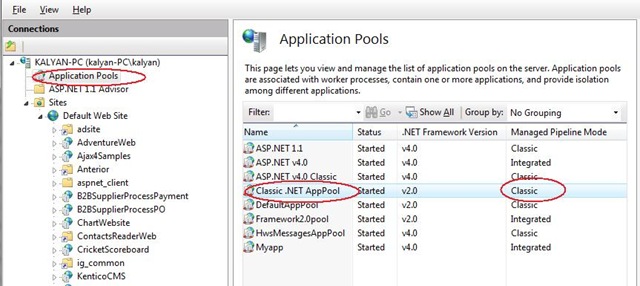
    IIS 7.0 provides the ASP.NET Integration by default, It supports both the new and old integration modes that can be used side by side on the same server. On IIS 7.0 you can run multiple ASP.NET version applications using integration and classic modes .

    image-thumb iis7

    You can run the both old and new ASP.NET application on IIS 7.0 in two modes

    • Integration mode
    • Classic mode

    You can perform the migration IIS 7.0 using the APPCMD.EXE command tool.

    %windir%\system32\inetsrv\APPCMD.EXE migrate config <Application Path>

    You must run the above command as an administrator by navigating

    Programs—>Accessories–>Command Prompt icon

    Where application path in the command line is virtual path of your application.

    When migration is complete your application can run in both Integration and Classic modes.

    If you still want to run your applications under classic integration mode you can do the following configuration.

    Changing ASP.NET Application Modes in IIS 7.0

    In order to change the integration mode for an application, do the following

    1. Create an application pool that is configured to use the desired mode. By default all new application pools run in Integration mode. However there is a application pool named “Classic .NET AppPool” that runs in the classic ASP.NET mode. You can use this application pool for applications that should run under classic mode.

    IIS7.0

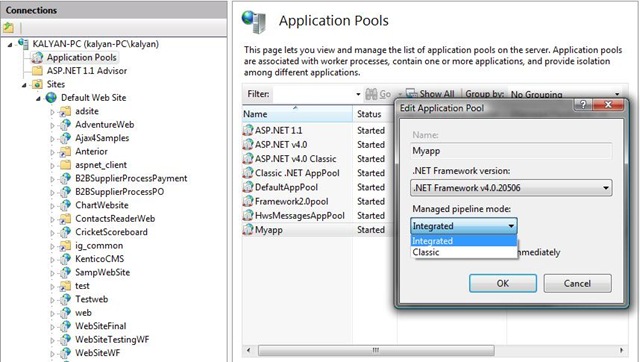
    open internet information manager [IIS manager] and set the classic mode or integration mode for new application pools as follows

    IISModes

    While creating the new application it prompt the above dialogue and there you can choose .NET Framework version and ASP.NET mode for the application pool.

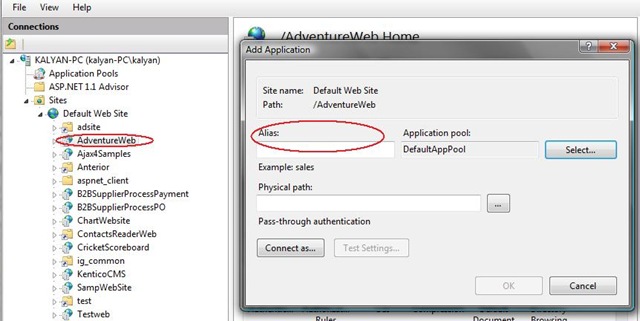
    2. You can map the newly created application pool to your applications as follows

    IISMaping

    Select the site and say Add Application pool then you will get the above dialogue there you can type the alias name for your site and then can select the physical path for the application.

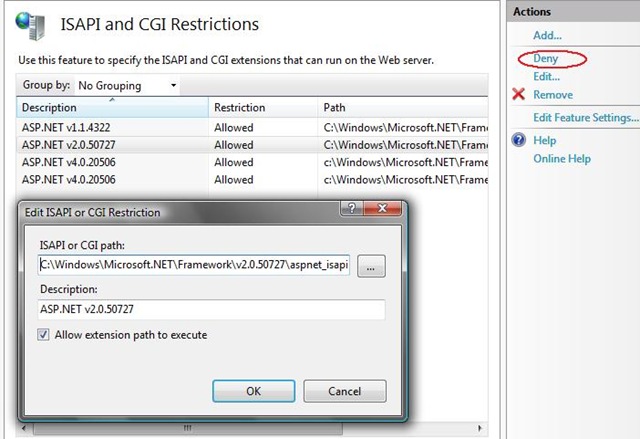
    Allowing Multiple ASP.NET Versions to run under IIS 7.0 as follows

    ISAPI

    Select the ISAPI and CGI Restrictions from features pane after selecting the web site level. Either you can Allow or Deny the particular to run under your web server.

    This post explained the basic steps required for running ASP.NET applications under IIS 7.0. To learn more about Hosting the ASP.NET applications under Integration Mode see http://learn.iis.net/page.aspx/244/how-to-take-advantage-of-the-iis7-integrated-pipeline/.

    понедельник, 3 августа 2009 г.

    IIS 6-7 Redirect http to https


    Приветствую вас, читатели ;)
    Пафос, конечно, но все же.
    Так вот, кому интересно, буду писать сегодня про то, как без всяких извращений (или же с ними) можно сделать перенаправление траффика сайта с http на https версию.
    Значит, для начала Microsoft IIS 6.0. Старый добрый, он поддерживает кучу способов.

    1. Отдельный сайт для редиректа

    Идея заключается вот в чем. У вас есть сайт №1, который работает по http (порт 80) и https (порт 443 - ssl).
    У этого сайта меняется порт TCP (80) на другой (81 или 8888 или 8112 - любой).
    Кроме этого, включается опция “Require SSL”
    Redirect settings
    image015
    Вы создаете еще один сайт, путь для него указываете отличный от других сайтов, например, C:\InetPub\WWWRoot2.
    Далее, в свойствах сайта, на закладке “Home Directory” указываете, что все запросы нужно перенаправлять на https://example.com$V$Q.
    Кроме того, выбираете опцию “The exact URL entered above”
    image013
    Что такое $V и $Q можно почитать в Redirect Reference.
    Применяем все изменения, и запускаем новый сайт. Теперь трафик автоматически переходит с http на https.

    2. ISAPI REWRITE

    Для IIS 6.0 существует ISAPI-расширение ISAPIREWRITE, которое позволяет создавать гибкие правила перенаправления и перезаписи URL. Подробнее о возможностях и о инсталляции модуля можно почитать тут.
    После установки данного расширения нужно всего навсего сделать текстовый файл httpd.ini в корневой папке вашего сайта и заполнить его следующим образом:
    [ISAPI_Rewrite]
    #
    http://www.isapirewrite.com/
    # Defend your computer from some worm attacks
    RewriteRule .*(?:global.asa|default\.ida|root\.exe|\.\.).* . [F,I,O]
    RepeatLimit 32
    # Block external access to the httpd.ini and httpd.parse.errors files
    RewriteRule /httpd(?:\.ini|\.parse\.errors).* / [F,I,O]
    # redirect all http requests to https
    RewriteCond %HTTPS (?!on).*
    RewriteCond Host: (.*)
    RewriteRule (.*) https\://$1$2 [I,RP]

    3. Обработчик для HTTP статуса 403.4

    Еще один интересный способ заключается в использовании обработчика статуса HTTP 403.4 - Forbidden: SSL is required to view this resource error, but the Web site is not configured to use SSL.
    Создаем текстовый файл RedirectToHttps.asp в папке C:\inetpub\wwwroot\customerrors\. Содержимое его ниже:
    Открываем в Microsoft IIS 6.0  Manager свойства сайта, который нужно заставить работать только по HTTPS.
    Вкладка “Directory Security”, кликаем по кнопке “Edit” в секции “Secure communications”. Ставим галочку “Require SSL”. Дальше, нужно открыть вкладку “Custom Errors”. Выбираем запись для ошибки 403.4 и кликаем по “Edit”.
    В выпадающем списке выбираем “File”, и с помощью кнопки “Browse” выбираем наш файлик c:\inetpub\wwwroot\customerrors\RedirectToHttps.asp.
    Вроде все

    Новый Microsoft IIS 7.0

    поддерживает те же самые способы.

    1. Родной способ с помощью HTTP Redirect:

    Создаем сайт, который будет заниматься редиректом, и делаем для него binding на HTTP port 80.САЙТ не должен ссылаться на отдельную папку (чтобы не было коллизий с конфигурацией).
    В оригинальном сайте удаляем binding на 80 порт и оставляем только 443 порт.
    Открываем в новом сайте опцию HTTP Redirect и настраиваем как показано на картинке ниже:
    HTTP Redirect feature
    Опять же используются те же переменные $V$Q и опция “Redirect all requests to exact destination (instead of relative to destination)”.
    Запускаем сайт и радуемся.

    2.URLRewrite для Microsoft IIS 7.0

    Скачиваем расширение для IIS 7.0 от Microsoft с названием URLRewrite и устанавливаем.
    Далее, в web.config вашего приложения добавляем следующие строчки:


    3. Обработчик для HTTP статуса 403.4

    Можно использовать тот же самый скрипт, который использовался для IIS 6.0.
    Ну и впридачу, обще-ASP.NET способ - реализация модуля или обработка события Application_BeginRequest.
    Детали реализации модуля можно увидеть в блоге одного парня Sukesh’а.